⚡ Quick Start
Get SkyLogs up and running in under 5 minutes and receive your first alert notification.
This guide focuses only on the fastest possible path to success.
No Prometheus.
No Kubernetes.
No email/SMS configuration.
We will simply:
- Run SkyLogs with Docker
- Add a Discord notifier (free & instant)
- Create an API alert
- Fire the alert and receive a notification
Requirements
Make sure you have:
- Docker
- Docker Compose
- Git
- Internet access (to pull images)
Step 1 — Clone the repository
git clone https://github.com/skylogsio/skylogs.git
cd skylogs
Step 2 — Start Docker containers
Using Stable Release (Recommended)
# Pull and start all services
docker compose up -d
This command will:
- Download all required Docker images
- Create and start all containers (application, database, Redis)
- Set up the network between services
Using Latest Version (Development)
If you want to use the latest version of Skylogs with the most recent features:
# Build and start all services from source
docker compose -f docker-compose-build.yml up -d
The latest version may contain experimental features and is recommended for development or testing environments.
Step 3 — Access Skylogs
Open your web browser and navigate to:
http://localhost:8080
Login with the default credentials:
- Username:
admin - Password:
SkylogsAdmin
For security reasons, please change the default password immediately after your first login.
Step 4 — Fire your first alert
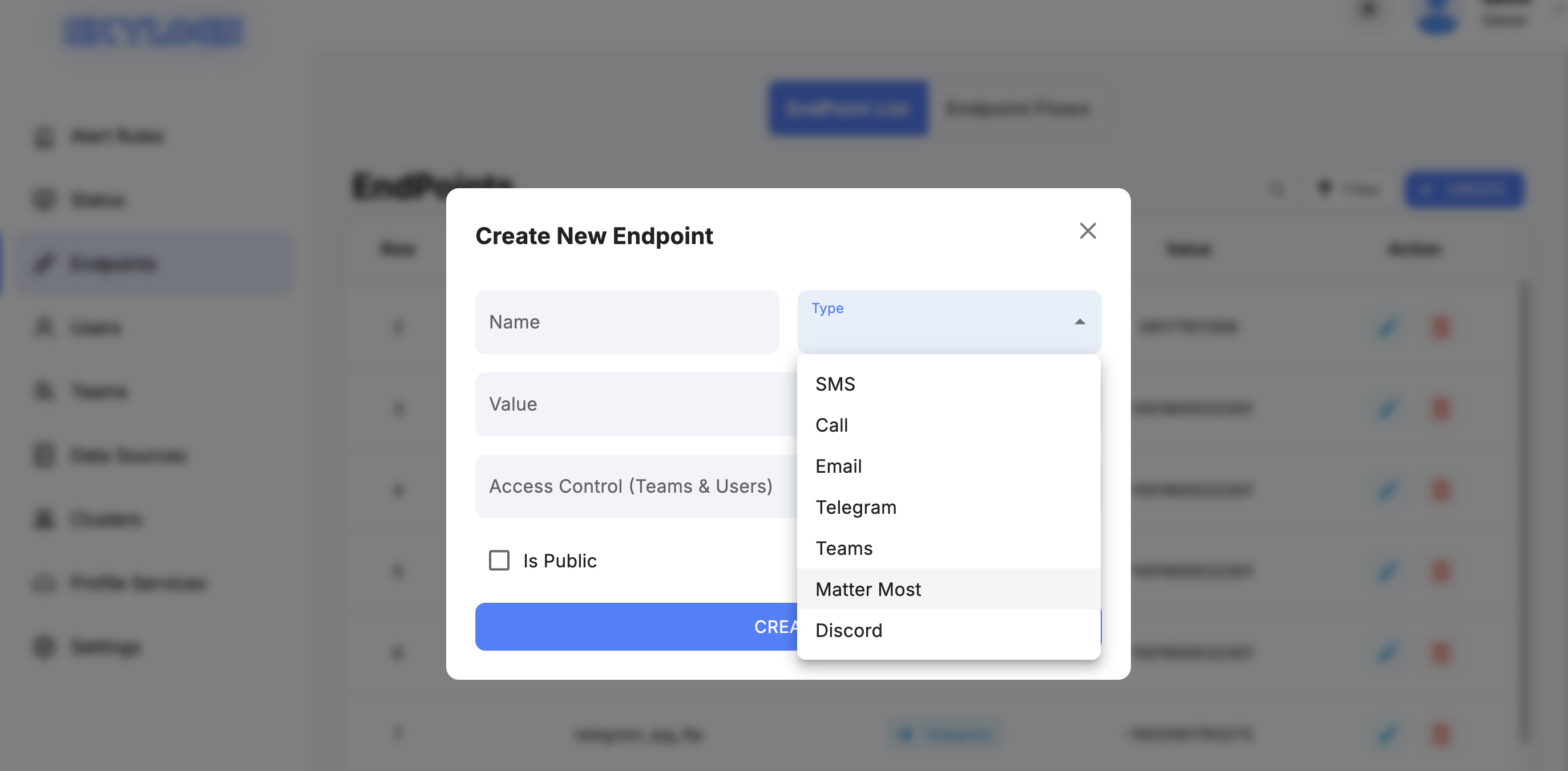
Create a Discord endpoint
- Go to the Endpoints tab and click Create.
- Select Discord as the endpoint type.
- Paste your Discord webhook URL into the value field.
- Enter an optional name for the endpoint.
- Click Create.
Your endpoint is now ready to be used for alert notifications.
Create an API alert rule
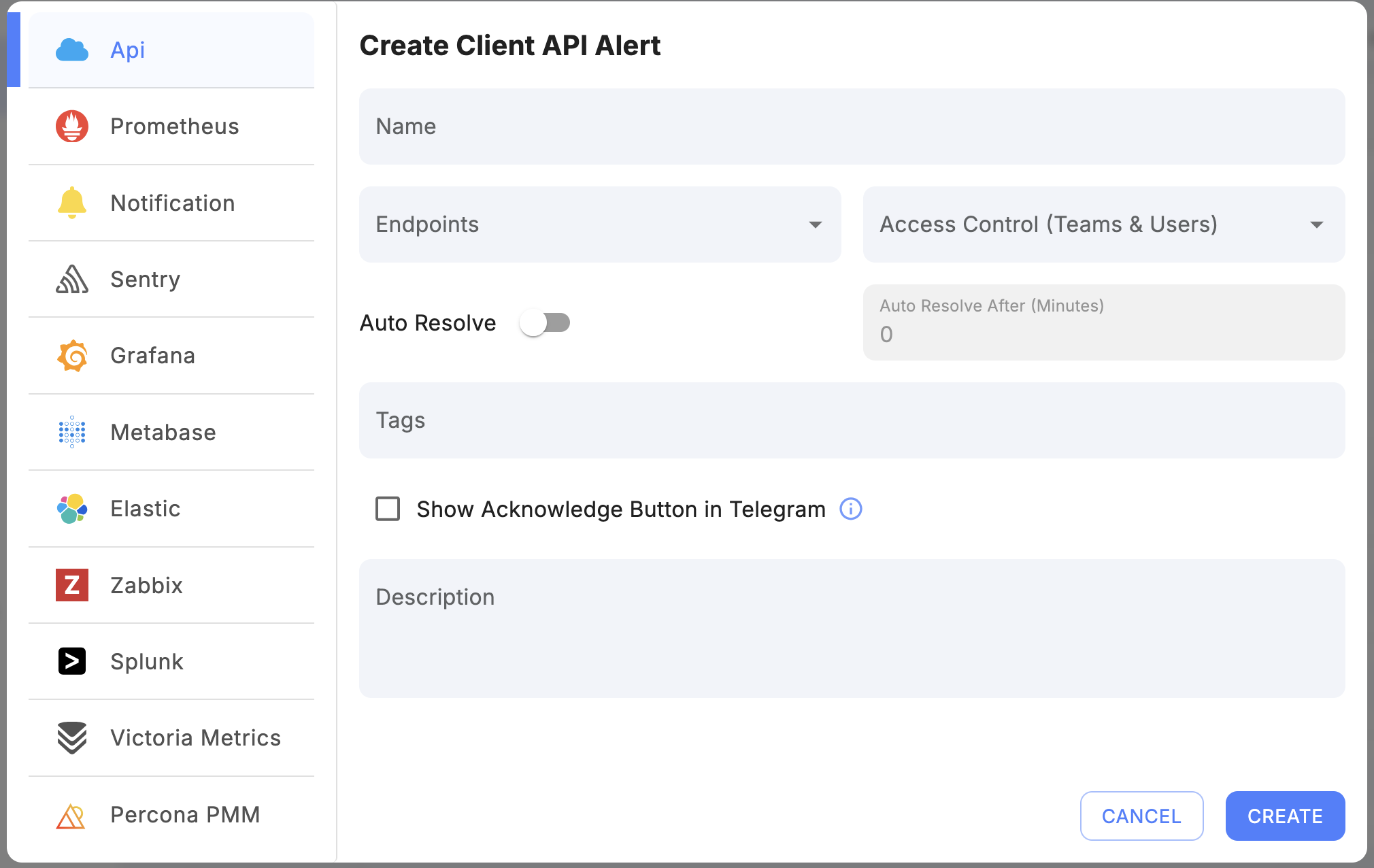
- Go to the Alert Rules tab and click Create.
- From the left panel, select API.
- Enter a name for the alert.
- Assign the endpoint you created in the previous step.
- Click Create.
You now have an API-based alert that can be fired and resolved using the SkyLogs API.
Test the alert
-
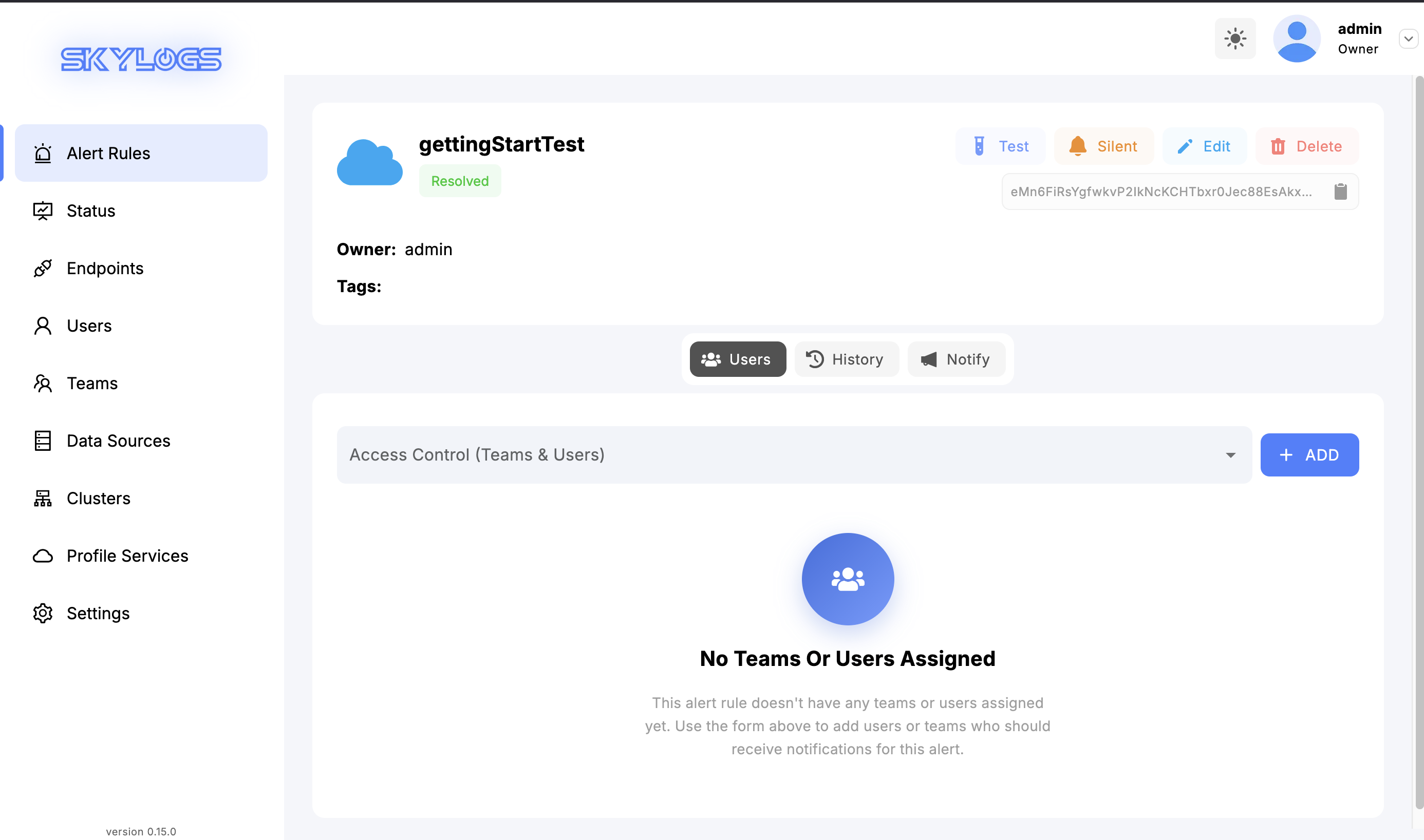
From the Alert Rules page, click on your alert to open the Alert View page.
-
Copy the Fire curl command and run it in your terminal.
- The alert should move to the Firing state.
- A notification will be sent to your Discord endpoint.
the fire alert is supposed to be like this:
curl -X POST http://localhost:8080/api/v1/fire-alert -H 'Content-Type: application/json' -d '{
"alertname":"YourAlertName",
"instance": "test",
"description": "test description"
}'
- Then copy and run the Resolve curl command.
- The alert status will change to Resolved.
- A resolve notification will be sent to Discord.
the resove alert is supposed to be like this:
curl -X POST http://localhost:8080/api/v1/stop-alert -H 'Content-Type: application/json' -d '{
"alertname":"YourAlertName",
"instance": "test",
"description": "test description"
}'
Your alerting workflow is now fully functional.
Next steps
- Connect a real monitoring source — see Integrations
- Going to production? HA clusters, multi-zone federation, Kubernetes, and hardened Docker Compose live in the Deployment section
- Set up teams, schedules, and escalation policies — see the User guide
If you encounter issues:
- Visit GitHub Issues
- Email: support@skylogs.io